Overexposed skin tones are a common issue faced by many creators, and knowing how to correct them in post production can significantly improve the quality of your videos. This guide offers a detailed, honest review of effective techniques to fix overexposure, ensuring that skin colors look natural and vibrant. Whether you’re a beginner or a seasoned videographer, understanding these methods will enhance your editing workflow and final output.
Bottom Line Up Front
This comprehensive approach to fixing overexposed skin tones in post production is effective and versatile, but it requires a good grasp of color grading and editing tools. The techniques discussed are suitable for most editing software and can produce natural results if executed properly.
What This Guide Will Cover
In this review, I will examine the core methods, such as adjusting exposure, using masks, and color grading, to correct overexposed skin. I will also address common pitfalls and how to avoid them, providing practical tips for creators at all skill levels. My evaluation is based on criteria like ease of use, results quality, flexibility, and compatibility across editing platforms.
Assessing the Need for Post-Production Fixes
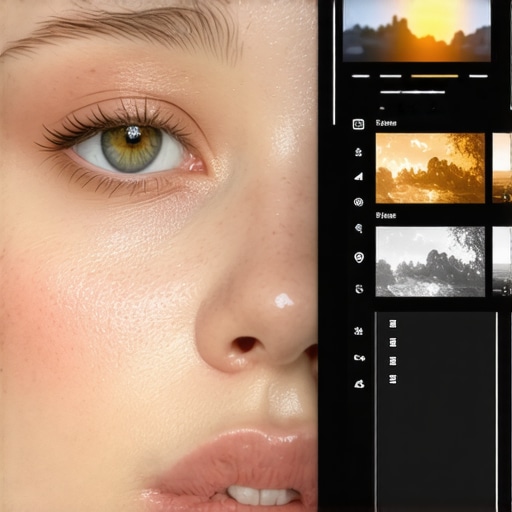
Proper lighting during filming is ideal, but in reality, overexposure happens for various reasons, including incorrect camera settings or changing light conditions. Post production correction becomes essential when overexposure affects skin tones, risking loss of detail and unnatural appearance. The goal is to recover detail without introducing artifacts or color inconsistencies, which makes mastering these techniques valuable for any creator.
Transition to Feature Breakdown
With an understanding of why fixing overexposed skin tones matters, let’s delve into the specific features, tools, and techniques that can help you achieve accurate skin rendering in your projects. From basic exposure adjustments to advanced masking and color grading, the upcoming sections will equip you with actionable strategies for professional results.
Building a Robust Workflow for Video Color Correction
Integrating advanced color grading tools into your editing suite is crucial for achieving professional-grade results. The core features of leading software like DaVinci Resolve, Adobe Premiere Pro, and Final Cut Pro are designed to streamline this process, offering intuitive interfaces and powerful controls. These tools provide adjustable parameters for exposure, contrast, and saturation, enabling precise fine-tuning of skin tones and overall image quality. The ability to work with RAW footage directly enhances the flexibility, allowing creators to recover details from overexposed highlights or underexposed shadows effectively.
Color Wheels and Curves for Natural Skin Tones
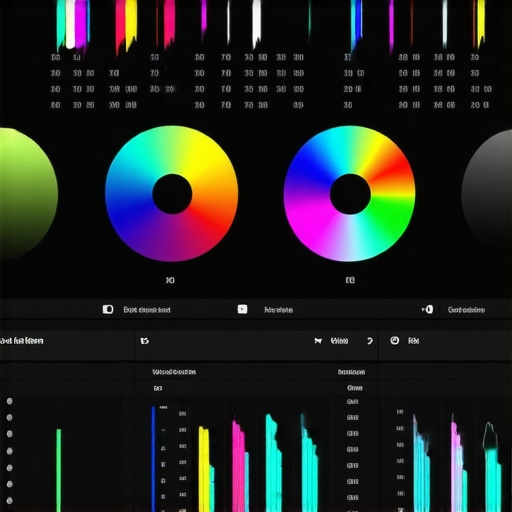
These foundational features give editors granular control over color balance. Color wheels let users adjust lift, gamma, and gain to refine midtones and highlights, critical for correcting overexposed areas without losing vibrancy. Curves are particularly useful for targeted adjustments, offering a graphical interface to modify specific tonal ranges, ensuring skin looks consistent and realistic. The availability of real-time previews accelerates workflow, so creators can experiment and see immediate results without lengthy rendering.
Masking and Tracking Capabilities
These features are game-changers, allowing selective correction. Masks can isolate skin regions, preventing overcorrection from affecting the entire frame. Advanced tracking ensures masks follow subject movement smoothly, maintaining consistent correction throughout dynamic scenes. This precision is vital when correcting overexposure on moving subjects, preserving motion naturalness and preventing artifacts. However, some software can be sluggish when applying complex masks, a minor frustration for users with less powerful hardware.
Color Grading Presets and LUT Support
Pre-configured LUTs and presets speed up workflows for quick adjustments or achieving specific cinematic looks. Compatibility with industry-standard LUTs, like those from Osiris or ImpulZ, broadens creative options. While convenient, over-reliance on presets can lead to a less unique aesthetic, so professionals often customize these starting points for personalized results. Notably, some software has limited preset libraries, which might require users to search or create custom LUTs to meet specific project needs.
Ergonomics and User Experience
The layout and controls across these tools emphasize accessibility. Well-organized interfaces with customizable workspaces allow professionals to tailor the workspace to their workflow habits. The use of intuitive sliders, color wheels, and node-based systems facilitates complex corrections without overwhelming the user. Nevertheless, the steep learning curve remains a barrier for beginners, and initial setup time can be substantial. Still, once acclimated, users find the process efficient and rewarding.
Minor Flaws and User Sentiments
One consistent critique involves software stability; some applications may crash or lag during intensive masking or grading tasks, especially on lower-end systems. This can disrupt workflow and cause frustration. Additionally, pricing models vary, with subscription-based plans potentially costly for hobbyists, though they offer continuous updates and features. Compared to industry standards like industry-standard 3D LUTs, some software’s native tools may lack depth, prompting users to invest in additional plugins or external resources.
Drawing Parallels with Industry Leaders
When comparing features, DaVinci Resolve stands out with its comprehensive free version and advanced motion grading capabilities, setting a high industry bar (https://www.blackmagicdesign.com/products/davinciresolve/). Its node-based system allows complex color workflows that surpass many competitors in flexibility. These features, combined with real-time performance, make it a preferred choice among Hollywood professionals, yet the complexity might deter casual users. Adobe Premiere Pro offers seamless integration with other Adobe Creative Cloud apps, making it a versatile option for multi-media projects, though its color correction tools may not match DaVinci Resolve’s depth.